Clever Cloud API Overview
The Clever Cloud Console and Clever Tools allow you to manage your account and products with the same public API you can use for your own services and integrations. This article will explain how to connect to this API and use it.
Request the API
Clever Cloud’s REST API offers three authentication mechanisms to meet different integration needs:
API tokens provide a straightforward way to authenticate requests on behalf of a specific user. These tokens operate similarly to passwords and should be handled with appropriate security measures. API tokens are ideal for personal scripts, CLI tools, and scenarios where you’re accessing your own resources. Use them to request the API Bridge: https://api-bridge.clever-cloud.com
OAuth 1 is designed for third-party applications that need to access Clever Cloud resources on behalf of their users. This authentication flow allows applications to request permissions from users without requiring direct access to their credentials. OAuth 1 is recommended for public applications, services that integrate with multiple user accounts, or any scenario where user delegation is required.
Service tokens are designed for machine-to-machine authentication scoped to an organisation. They carry a role and can optionally target a specific application or add-on. Based on the Eclipse Biscuit format, they can also be attenuated locally to derive more restricted tokens without any server-side call. Service tokens are ideal for CI/CD pipelines, automated deployments, and scenarios where actions should be performed on behalf of an organisation rather than a specific user. Use them to request the API directly: https://api.clever-cloud.com
| API tokens | OAuth 1 | Service tokens | |
|---|---|---|---|
| Scope | User | User (delegated) | Organisation |
| Resource restriction | No | No | Optional (apps, add-ons) |
| Offline attenuation | No | No | Yes (Eclipse Biscuit) |
| Max lifetime | 1 year | 3 months | 1 year (default: 90 days) |
| Role-based | No | No (permission-based) | Yes (Admin, Manager, Developer, Accounting) |
| API endpoint | API Bridge only | Main API (v2, v4) | Main API (v2) |
| Best for | Personal scripts, CLI | Third-party apps | CI/CD, automation, M2M |
Choose the authentication method that best aligns with your specific integration requirements and security considerations.
API tokens
Clever Cloud Console allows you to easily create and manage API tokens.
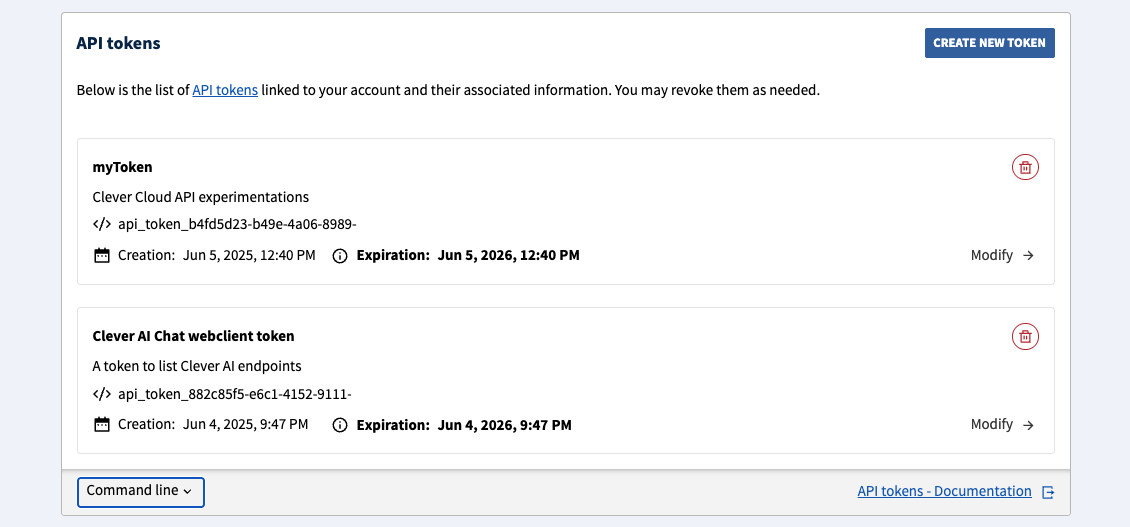
Clever Tools provides a clever tokens set of commands. This feature needs to be enabled:
clever features enable tokens
clever tokens create "CI job Foobar"
clever tokens create "Quick local test" --expiration 1h
You can also list or revoke tokens:
clever tokens -F json
clever tokens revoke api_tokens_xxx
Once created, API tokens must be used through the bridge URL:
curl https://api-bridge.clever-cloud.com/v2/self -H "Authorization: Bearer [API_TOKEN]"Service tokens
Service tokens provide organisation-scoped authentication for automated systems, CI/CD pipelines, and service-to-service communication. Unlike API tokens, which are tied to a user account, service tokens act on behalf of an organisation with a specific role.
Each service token carries a role (Admin, Manager, Developer, or Accounting) that determines what actions it can perform. You can only create tokens with a role equal to or lower than your own. Tokens can also be scoped to a specific application or add-on within the organisation, further restricting their access. Note that the Developer role only grants access to application endpoints; accessing add-on endpoints requires at least the Manager role.
Service tokens have a configurable time-to-live (TTL) from 1 second up to 1 year (default: 90 days). The token value is only displayed once at creation time and cannot be retrieved afterwards. Store it securely.
Create and manage with Clever Tools
Clever Tools provides a clever service-tokens set of commands:
clever service-tokens create "CI pipeline" --org myOrg --role Developer
clever service-tokens create "Deploy bot" --org myOrg --role Manager --resources app_xxx,addon_yyy --expiration 30d
If you omit --org, the token is created in your personal space. If you omit --role, the CLI prompts you to select interactively.
List, get details about, or revoke service tokens:
clever service-tokens list --org myOrg
clever service-tokens get <token-id-or-name> --org myOrg
clever service-tokens revoke <token-id-or-name> --org myOrg
Create and manage with the API
Service token endpoints are under /v2/organisations/{id}/service-tokens. See the APIv2 Reference for the full specification. Here is a creation example using clever curl:
clever curl -X POST https://api.clever-cloud.com/v2/organisations/<ORG_ID>/service-tokens \
  -H "Content-Type: application/json" \
  -d '{
    "name": "CI pipeline",
    "description": "Token for automated deployments",
    "role": "DEVELOPER",
    "resources": ["app_xxxxxxxx-xxxx-xxxx-xxxx-xxxxxxxxxxxx", "addon_yyyyyyyy-yyyy-yyyy-yyyy-yyyyyyyyyyyy"],
    "ttl_seconds": 2592000
  }'
The name and role fields are required. The role value must be uppercase: ADMIN, MANAGER, DEVELOPER, or ACCOUNTING. description, resources, and ttl_seconds are optional (TTL defaults to 90 days). The resources field accepts an array of application IDs, add-on IDs, or real IDs to scope the token to.
The response contains a token field (the Biscuit token value, shown only once) and a metadata object with the token id (prefixed token_), status, createdAt, expiredAt, and other fields. Use metadata.id to manage the token afterwards (get details, revoke).
The list endpoint (GET /v2/organisations/{id}/service-tokens) supports limit and offset query parameters for pagination.
Use a service token
Service tokens authenticate directly against the main API (not the API Bridge). Pass the token as a Bearer token in the Authorization header:
curl https://api.clever-cloud.com/v2/organisations/<ORG_ID>/applications/<APP_ID> \
  -H "Authorization: Bearer <SERVICE_TOKEN>"
If your token is not scoped to specific resources, you can also access collection endpoints such as /v2/organisations/<ORG_ID>/applications.
Note
Service tokens currently authenticate against v2 endpoints only. v4 endpoint support is not yet available.
Inspect and attenuate
Service tokens are standard Eclipse Biscuit tokens that you can inspect and attenuate locally with the biscuit CLI.
To inspect a service token and see its embedded datalog facts (tenant, role, robot ID, expiration):
echo "$CC_SERVICE_TOKEN" | biscuit inspect -Attenuation derives a more restricted token from an existing one. The operation is purely local and offline: it does not require any access to the Clever Cloud API or account. The attenuated token is cryptographically bound to the original and can only reduce permissions, never expand them.
You can attenuate a token to shorten its lifetime. For example, an orchestrator holding a long-lived service token can derive a short-lived token before passing it to an external runner or a contractor who should not have access to the original credential:
export RUNNER_TOKEN=$(echo "$CC_SERVICE_TOKEN" | biscuit attenuate - --add-ttl 45m --block "")The resulting token expires after 45 minutes regardless of the original token’s TTL. If the attenuated token is leaked, the exposure window is limited to its short lifetime.
You can also attenuate a token to restrict it to specific resources. Starting from an unscoped service token, you can derive a token limited to a single application or add-on:
export APP_TOKEN=$(echo "$CC_SERVICE_TOKEN" | biscuit attenuate - --block 'check if resource("app_xxx")')Or to a set of resources using or:
export SCOPED_TOKEN=$(echo "$CC_SERVICE_TOKEN" | biscuit attenuate - --block 'check if resource("app_xxx") or resource("addon_yyy")')The attenuated token only works on endpoints targeting those resources and is rejected everywhere else. Both restrictions (TTL and resource scope) can be combined in a single attenuation step:
export TEMP_TOKEN=$(echo "$CC_SERVICE_TOKEN" | biscuit attenuate - --add-ttl 45m --block 'check if resource("app_xxx")')To learn more about Eclipse Biscuit tokens, visit the official documentation or try the interactive playground.
clever curl
clever curl is a wrapper around curl, it supports the same arguments and handles the authentication automatically for you using the CLI account you’re currently logged in with. It’s a simple way to make requests to the Clever Cloud API if Clever Tools are installed on your system.
clever curl https://api.clever-cloud.com/v2/self
clever curl https://api.clever-cloud.com/v2/summary
clever curl https://api.clever-cloud.com/v4/products/zones
clever curl https://api.clever-cloud.com/v2/organisations/<ORGANISATION_ID>/applications | jq '.[].id'
clever curl https://api.clever-cloud.com/v4/billing/organisations/<ORGANISATION_ID>/<INVOICE_NUMBER>.pdf > invoice.pdf
Official clients/SDKs
You can request the Clever Cloud API from multiple languages through our official clients/SDKs:
OAuth1
If you have an application that needs to access Clever Cloud resources on behalf of your users, you can use OAuth1. This is the recommended way to authenticate third-party applications.
- To manage OAuth tokens linked to your account, use the Clever Cloud Console
- A complete working example (Node.js) is available at github.com/CleverCloud/oauth1-example
Create an OAuth consumer
First, you’ll need to create an OAuth consumer for your application. This can be done in the Clever Cloud Console. Go to your organisation, click on Create…, then on an OAuth consumer and fill the form. You will get:
- A consumer key (public identifier for your application)
- A consumer secret (private key, never expose it client-side)
Note
The base URL you set when creating the consumer is important: the callback URL you use during the OAuth flow must match this base URL’s domain. For local development, register a separate consumer with http://localhost:<port> as the base URL.
The OAuth1 flow
Your application must implement the OAuth 1.0a flow (also known as the “OAuth dance”). It consists of three steps: obtaining a request token, redirecting the user for authorization, and exchanging for an access token.
Get a request token
Request a temporary token from the API. OAuth parameters can be sent as query string parameters or as a form-encoded body:
POST https://api.clever-cloud.com/v2/oauth/request_token_query— parameters as query stringPOST https://api.clever-cloud.com/v2/oauth/request_token— parameters asapplication/x-www-form-urlencodedbody
Required parameters:
| Parameter | Description |
|---|---|
oauth_consumer_key | Your consumer key |
oauth_signature_method | HMAC-SHA512, HMAC-SHA1, or PLAINTEXT |
oauth_signature | Request signature (see Signing requests) |
oauth_timestamp | Current Unix timestamp (seconds) |
oauth_nonce | Unique random string for this request |
oauth_version | Must be 1.0 |
oauth_callback | URL to redirect the user to after authorization |
Example request (see Signing requests for how to compute the signature):
const url = "https://api.clever-cloud.com/v2/oauth/request_token_query";

const params = {
  oauth_consumer_key: CONSUMER_KEY,
  oauth_signature_method: "HMAC-SHA512",
  oauth_timestamp: Math.floor(Date.now() / 1000).toString(),
  oauth_nonce: crypto.randomUUID().replace(/-/g, ""),
  oauth_version: "1.0",
  oauth_callback: "http://localhost:8080/auth/callback",
};

// buildBaseString and sign are defined in the "Signing requests" section
const baseString = buildBaseString("POST", url, params);
params.oauth_signature = sign(baseString);

const qs = new URLSearchParams(params).toString();
const res = await fetch(`${url}?${qs}`, { method: "POST" });
Tip
For quick testing, you can use PLAINTEXT with curl (percent-encode your consumer secret if it contains non-alphanumeric characters):
curl -X POST "https://api.clever-cloud.com/v2/oauth/request_token_query?\
oauth_consumer_key=<CONSUMER_KEY>&oauth_signature_method=PLAINTEXT&\
oauth_signature=<CONSUMER_SECRET>%26&oauth_timestamp=$(date +%s)&\
oauth_nonce=$(uuidgen)&oauth_version=1.0&\
oauth_callback=http%3A%2F%2Flocalhost%3A8080%2Fauth%2Fcallback"
Response (application/x-www-form-urlencoded)
oauth_token=<REQUEST_TOKEN>&oauth_token_secret=<REQUEST_TOKEN_SECRET>&oauth_callback_confirmed=trueStore the oauth_token_secret securely server-side — you will need it in step 3.
Redirect the user to authorize
Redirect the user’s browser to the authorization page with the request token:
https://api.clever-cloud.com/v2/oauth/authorize?oauth_token=<REQUEST_TOKEN>The user logs into Clever Cloud (if not already) and is presented with a permissions form. Available permissions are:
| Permission | Description |
|---|---|
access_organisations | Access organisations |
access_organisations_bills | Access organisations’ bills |
access_organisations_consumption_statistics | Access organisations’ consumption statistics |
access_organisations_credit_count | Access organisations’ credit count |
access_personal_information | Access personal information |
manage_organisations | Manage organisations |
manage_organisations_applications | Manage organisations’ applications |
manage_organisations_members | Manage organisations’ members |
manage_organisations_services | Manage organisations’ add-ons |
manage_personal_information | Manage personal information |
manage_ssh_keys | Manage SSH keys |
You can retrieve this list programmatically with GET https://api.clever-cloud.com/v2/oauth/rights.
Once the user approves, the browser is redirected to your oauth_callback URL with the following query string parameters:
| Parameter | Description |
|---|---|
oauth_token | The request token (must match the one from step 1) |
oauth_verifier | Verification code to exchange for an access token |
Exchange for an access token
Exchange the request token and verifier for an access token. As with step 1, parameters can be sent as query string or form body:
POST https://api.clever-cloud.com/v2/oauth/access_token_query— parameters as query stringPOST https://api.clever-cloud.com/v2/oauth/access_token— parameters asapplication/x-www-form-urlencodedbody
Required parameters:
| Parameter | Description |
|---|---|
oauth_consumer_key | Your consumer key |
oauth_signature_method | Same method as step 1 |
oauth_signature | Request signature (signed with the request token secret from step 1) |
oauth_timestamp | Current Unix timestamp (seconds) |
oauth_nonce | Unique random string |
oauth_version | 1.0 |
oauth_token | The request token from step 1 |
oauth_verifier | The verifier from the callback redirect |
Response (application/x-www-form-urlencoded)
oauth_token=<ACCESS_TOKEN>&oauth_token_secret=<ACCESS_TOKEN_SECRET>&expiration_date=<ISO_8601_DATE>Store both oauth_token and oauth_token_secret securely — you will need them to sign every subsequent API request.
Note
Access tokens expire after 3 months by default. The response includes an expiration_date field (ISO 8601 format).
Making authenticated API requests
Once you have the four credentials (consumer key, consumer secret, user token, user token secret), sign every API request using the Authorization header:
Authorization: OAuth oauth_consumer_key="<CONSUMER_KEY>", oauth_token="<ACCESS_TOKEN>", oauth_signature_method="HMAC-SHA512", oauth_signature="<SIGNATURE>", oauth_timestamp="<TIMESTAMP>", oauth_nonce="<NONCE>", oauth_version="1.0"Example — Fetching the authenticated user’s profile:
// buildBaseString, sign and authorizationHeader are defined in the "Signing requests" section
const params = {
  oauth_consumer_key: CONSUMER_KEY,
  oauth_signature_method: "HMAC-SHA512",
  oauth_timestamp: Math.floor(Date.now() / 1000).toString(),
  oauth_nonce: crypto.randomUUID().replace(/-/g, ""),
  oauth_version: "1.0",
  oauth_token: ACCESS_TOKEN,
};

const baseString = buildBaseString("GET", "https://api.clever-cloud.com/v2/self", params);
params.oauth_signature = sign(baseString, ACCESS_TOKEN_SECRET);

const res = await fetch("https://api.clever-cloud.com/v2/self", {
  headers: { Authorization: authorizationHeader(params) },
});
const user = await res.json();
Signing requests
Three signature methods are supported. HMAC-SHA512 is recommended for production use.
PLAINTEXT
The simplest method. The signature is the consumer secret and token secret, percent-encoded per RFC 3986 and joined with &:
const signature = percentEncode(consumerSecret) + "&" + percentEncode(tokenSecret);For the request token step (where no token secret exists yet), leave the second part empty:
const signature = percentEncode(consumerSecret) + "&";Note
The percentEncode function is defined in the HMAC section below. For secrets containing only alphanumeric characters, encodeURIComponent produces the same result.
HMAC-SHA1/SHA512
These methods sign a base string to ensure the request has not been tampered with. The code snippets below are a JavaScript/Node.js implementation example.
1. Define a percentEncode helper per RFC 3986:
// Like encodeURIComponent, but also encodes !'()*
function percentEncode(str) {
  return encodeURIComponent(str)
    .replace(/[!'()*]/g, c => "%" + c.charCodeAt(0).toString(16).toUpperCase());
}
2. Define buildBaseString — it concatenates the HTTP method, URL, and sorted parameters, all percent-encoded and joined with &:
function buildBaseString(method, url, params) {
  const sorted = Object.keys(params)
    .filter(k => k !== "oauth_signature")
    .sort()
    .map(k => percentEncode(k) + "=" + percentEncode(params[k]))
    .join("&");
  return method.toUpperCase() + "&" + percentEncode(url) + "&" + percentEncode(sorted);
}
The three components are:
- The HTTP method in uppercase (
GET,POST, etc.) - The base URL (without query string), percent-encoded
- All request parameters (OAuth parameters excluding
oauth_signature, plus any query string or form body parameters), sorted alphabetically by key — then by value in case of duplicates — formatted askey=valuepairs joined by&, then percent-encoded as a single string
3. Define sign — it computes an HMAC with the chosen algorithm and returns the base64-encoded result:
const { createHmac } = await import("node:crypto");

function sign(baseString, tokenSecret = "") {
  const signingKey = percentEncode(consumerSecret) + "&" + percentEncode(tokenSecret);
  return createHmac("sha512", signingKey).update(baseString).digest("base64");
}
4. Build the Authorization header with all OAuth parameters (including the signature):
function authorizationHeader(params) {
  const pairs = Object.entries(params)
    .map(([k, v]) => percentEncode(k) + '="' + percentEncode(v) + '"')
    .join(", ");
  return "OAuth " + pairs;
}Did this documentation help you ?